
How to Merge M3U8 to MP4 — 4 Complete Methods for 2026 (Online, FFmpeg, VLC, and More)
M3U8 is the world's most common streaming format — but it is not a video file you can simply double-click and keep. It is a playlist pointing to dozens or hundreds of small .ts segment files scattered across a CDN. To get a self-contained, portable MP4 you can store, edit, or play offline, you need to fetch all the segments and merge them.
This guide covers four complete, tested methods — from the simplest one-click browser tool to advanced FFmpeg command-line options — including how to handle AES-128 encryption and multi-bitrate master playlists.
WARNING
This guide covers scenarios where you own the content or have legal authorization to process it. Always verify your rights before converting third-party video content.
Why You Need to "Merge" M3U8 — Not Just Download It
When you encounter an M3U8 stream, what you have is a text index file that looks like this:
#EXTM3U
#EXT-X-VERSION:3
#EXT-X-TARGETDURATION:10
#EXTINF:9.0,
https://cdn.example.com/seg_000001.ts
#EXTINF:9.0,
https://cdn.example.com/seg_000002.ts
#EXTINF:9.0,
https://cdn.example.com/seg_000003.ts
#EXT-X-ENDLIST
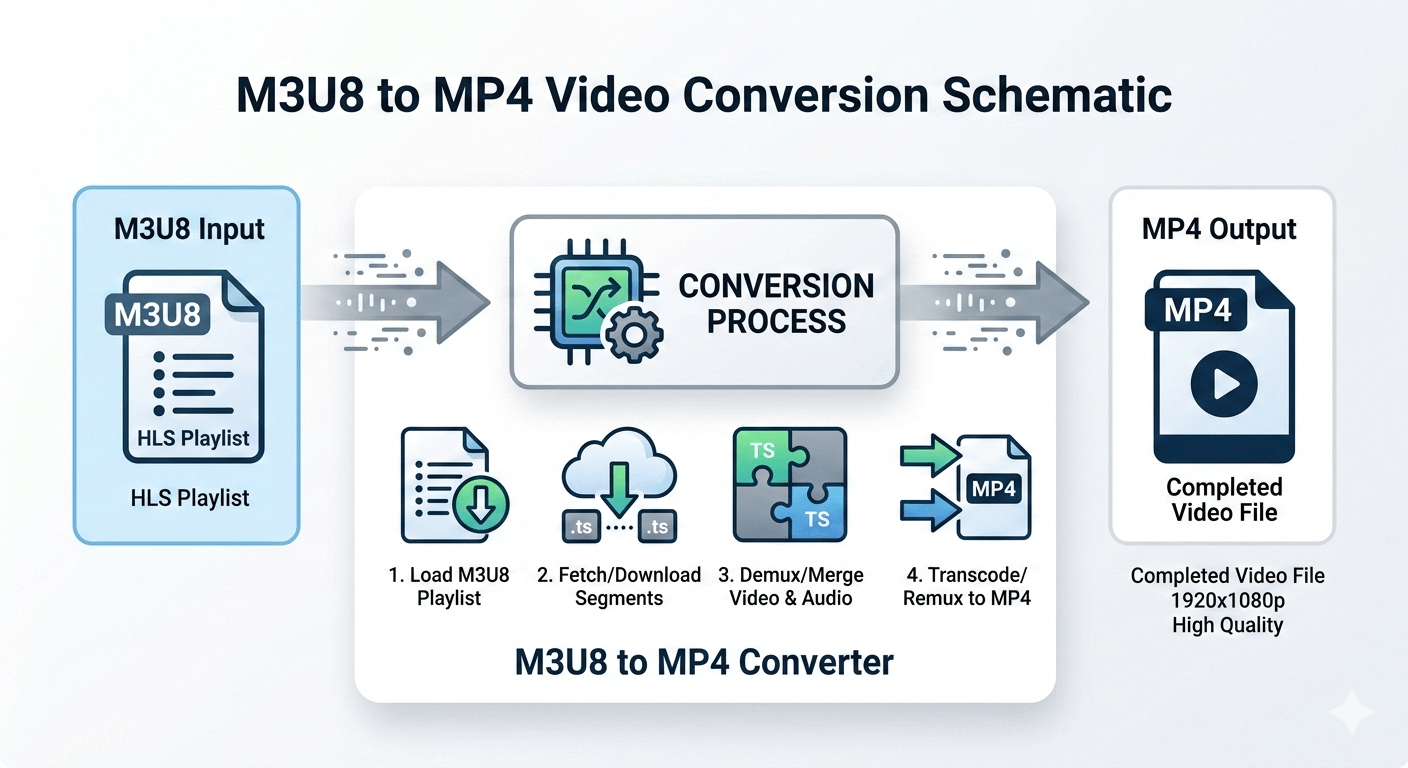
A 1-hour video might reference 360+ individual .ts files. Standard download managers grab the index file (a few KB of text) and stop — they never fetch the actual video data. A proper merge tool must:
- Parse the M3U8 playlist to extract all segment URLs.
- Download every
.tssegment (in parallel for speed). - Decrypt segments if AES-128 encryption is used.
- Concatenate the raw streams.
- Remux the result into an MP4 container.
Here is a visual overview of the process:
M3U8 vs. MP4 — When to Convert
| Factor | M3U8 / HLS | MP4 |
|---|---|---|
| Storage | Multiple files (index + segments) | Single file |
| Portability | Requires all segments + playlist | Self-contained |
| Streaming | Optimized for adaptive delivery | Works with progressive download |
| Editing software | Rarely supported | Universally supported |
| Offline playback | Depends on local segment paths | Always works |
| File management | Complex | Simple |
Convert when you need a file you can edit, archive, share, or play on any device without an internet connection.
Method 1: Browser-Based Online Tool (No Installation — Recommended)
The M3U8 to MP4 Converter runs entirely inside your browser using WebAssembly. Nothing is uploaded to any server — your computer fetches the segments, decrypts them if needed, and merges them locally.
Step 1: Open the tool and paste your M3U8 URL
Visit M3U8 to MP4 Converter and paste your M3U8 link into the URL field. Click Parse.
Step 2: Select quality (for master playlists)
If your URL is a master playlist, the tool will display all available quality levels (e.g., 360p, 720p, 1080p) with bitrate information. Select your preferred quality.
Step 3: Configure download options (optional)
- Multi-thread mode: Enables parallel segment downloads — significantly faster for large videos. Recommended for most users. Note that very aggressive servers may rate-limit multi-threaded requests; disable if you see fetch errors.
- Thread count: Adjust based on your network. 4–8 threads is a good default.
Step 4: Start conversion and save
Click Start Conversion. Progress is shown segment by segment. When complete, click Save to download your MP4 file.
What this tool handles:
- Standard VOD and event M3U8 streams
- AES-128 encrypted streams (automatically fetches the decryption key)
- Multi-bitrate master playlists with quality selection
- Large files (tested up to 4GB on Chrome/Windows with sufficient RAM)
Limitations:
- DRM-protected streams (Widevine, FairPlay, PlayReady) cannot be converted
- Very large files on iOS/Safari may cause browser memory crashes — use PC Chrome for files over 500MB
Method 2: FFmpeg (Command Line — Most Flexible)
FFmpeg is the gold standard for video processing. It handles M3U8 conversion natively, including AES-128 decryption.
Basic conversion (stream copy — lossless, fast):
ffmpeg -i "https://cdn.example.com/stream.m3u8" -c copy output.mp4The -c copy flag tells FFmpeg to copy video and audio streams without re-encoding, preserving original quality and running much faster.
If you get an audio error (Could not write header for output file #0 or ADTS-related errors):
ffmpeg -i "https://cdn.example.com/stream.m3u8" -c copy -bsf:a aac_adtstoasc output.mp4AES-128 encrypted M3U8:
FFmpeg handles AES-128 decryption automatically. As long as the #EXT-X-KEY URI is publicly accessible, no extra flags are needed:
ffmpeg -i "https://cdn.example.com/encrypted-stream.m3u8" -c copy output.mp4If the key requires authentication headers (e.g., cookies or a token), you need to provide them:
ffmpeg -headers "Cookie: session=abc123" \
       -i "https://cdn.example.com/encrypted-stream.m3u8" \
       -c copy output.mp4
Choosing a specific quality from a master playlist:
First, open the master playlist in a text editor or browser and find the media playlist URL for your desired quality. Then pass that URL directly to FFmpeg:
ffmpeg -i "https://cdn.example.com/1080p/index.m3u8" -c copy output.mp4Re-encoding (for compatibility or size reduction):
ffmpeg -i "https://cdn.example.com/stream.m3u8" \
       -c:v libx264 -crf 22 -preset fast \
       -c:a aac -b:a 128k \
       output.mp4
-crf 22 controls quality (lower = better quality, larger file). 18 is near-lossless; 28 is smaller but noticeably lower quality.
FFmpeg strengths over online tools:
- Full control over encoding parameters
- Can handle streams that require custom HTTP headers
- Suitable for batch processing and automation scripts
- No browser memory limits — can handle very large or long streams
Method 3: VLC Media Player — Convert/Save Stream Feature
VLC can play M3U8 streams and simultaneously save them as MP4 without re-encoding.
Steps:
- Open VLC → Media → Convert/Save (Ctrl+R).
- Click the Network tab.
- Paste your M3U8 URL.
- Click Convert/Save (not Play).
- In the Convert dialog: set Profile to
Video - H.264 + MP3 (MP4). - Set Destination file to your desired output path.
- Click Start.
When to use VLC for conversion:
- You already have VLC installed and prefer a GUI.
- The stream is a local M3U8 file with relative segment paths.
- You want a no-code solution on macOS (where FFmpeg setup can be more involved).
VLC limitation: Conversion speed depends entirely on real-time playback speed — a 2-hour stream takes approximately 2 hours to save. FFmpeg and online tools are much faster.
Method 4: yt-dlp (Advanced — Handles Token-Protected Streams)
yt-dlp is a command-line tool that wraps FFmpeg and adds sophisticated header/cookie management. It is particularly useful for streams that require browser cookies or custom Referer headers.
yt-dlp "https://example.com/video-page-url" -o output.mp4For direct M3U8 URLs:
yt-dlp --add-header "Referer: https://example.com" \
       "https://cdn.example.com/stream.m3u8" \
       -o output.mp4
yt-dlp automatically selects the best quality from master playlists. Use -f "bestvideo+bestaudio" to be explicit.
Handling Common Conversion Problems
| Problem | Cause | Solution |
|---|---|---|
| Converted file is only a few KB | Saved the index file, not the video | Use a dedicated M3U8 merger tool |
| 403 Forbidden during segment download | Hotlink protection / expired token | Re-capture the M3U8 URL; it has a time-limited token |
| "Cannot decrypt" or "Invalid key" error | AES-128 key URL requires authentication | Pass session cookies via headers in FFmpeg or yt-dlp |
| Audio/video out of sync in output | Timestamp discontinuity in source segments | Add -async 1 to FFmpeg command |
| Browser tab crashes during conversion | Memory limit exceeded (iOS/Safari) | Switch to Chrome on PC for large files |
| DRM error — cannot convert | Widevine/FairPlay/PlayReady protection | Cannot be converted; content is license-locked |
Summary
| Method | Best For | Installation | Speed |
|---|---|---|---|
| Online converter | Quick, no-install, AES-128 | None | Fast (parallel) |
| FFmpeg | Full control, large files, scripting | Required | Very fast |
| VLC Convert | GUI users, local files | Required | Real-time only |
| yt-dlp | Token/cookie-protected streams | Required | Fast |
For most users who need a one-time conversion without setting up a development environment, the M3U8 to MP4 Converter is the fastest path from URL to local MP4 file.
For developers, automation workflows, or streams with authentication requirements, FFmpeg combined with yt-dlp provides the highest flexibility.