
Best M3U8 Players in 2026 — Tested Methods for Smooth HLS Playback on PC and Mobile
Playing M3U8 videos smoothly on a PC is more complicated than it looks. Chrome does not natively support HLS. Many browser extensions are buggy or collect your data. Some players handle encrypted streams, others do not. And if you pick the wrong tool for a high-bitrate 4K stream, you will end up with constant buffering or a crashed tab.
After testing every major option, here is a clear, honest breakdown of the four methods — ranked from most convenient to most powerful — so you can pick the one that matches your situation.
Why Is M3U8 "Native" Browser Playback So Problematic?
M3U8 is a playlist format used by the HLS (HTTP Live Streaming) protocol. It is not a video file — it points to hundreds of small .ts segment files that must be fetched and assembled in real time. While Safari natively supports HLS (Apple invented it), Chrome, Firefox, and Edge do not — they require a JavaScript library (like hls.js) or a dedicated player to interpret the playlist and stitch the segments together.
On top of that, streams may use AES-128 encryption, multiple quality levels (adaptive bitrate), or unusual video codecs that further limit compatibility. This is why choosing the right tool matters.
Method Comparison at a Glance
| Method | Installation | AES-128 Support | Adaptive Bitrate | Best For |
|---|---|---|---|---|
| Online M3U8 Player | None (web) | ✅ Yes | ✅ Yes | Quick playback, any OS |
| VLC Media Player | Required | ✅ Yes | ✅ Yes | Offline files, troubleshooting |
| PotPlayer | Required (Win) | ✅ Yes | ✅ Yes | Windows power users |
| Browser Extension | Required | 🟡 Varies | 🟡 Varies | Occasional sniffing |
Method 1: Use a Dedicated Online M3U8 Player (Recommended)
This is the method that requires the least effort and works on every operating system without installing a single file.
The M3U8 Player Online is built on top of hls.js and handles most HLS streams that desktop players struggle with.
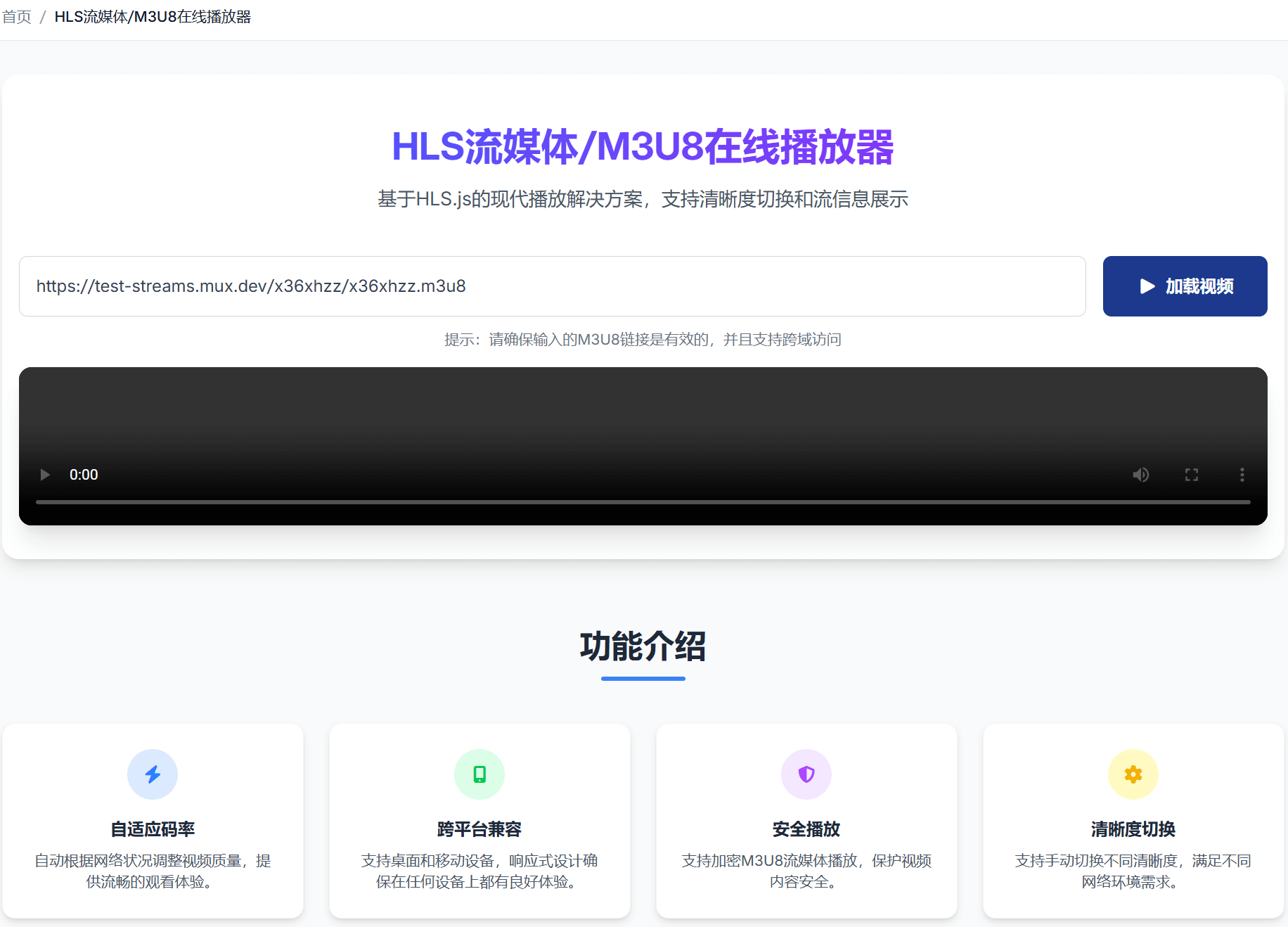
How to use it:
- Copy your M3U8 link (right-click → Copy link address, or grab it from DevTools Network tab).
- Visit M3U8 Player Online.
- Paste the link into the input box and click Play.
That's it. No plugins, no configuration.
What it handles well:
- Standard HLS streams — VOD and live, including streams with
#EXT-X-ENDLISTand infinite live playlists. - AES-128 encrypted streams — automatically fetches the decryption key and decodes on the fly.
- Multi-bitrate / adaptive streams — shows a quality selector so you can pin to 1080p or let it adapt automatically.
- Multiple audio tracks — useful for multi-language content.
- Cross-platform — works identically on Windows, macOS, Linux, Android, and iOS.
When it might not work:
- Streams using DRM (Widevine/FairPlay/PlayReady) — these require platform-specific license servers.
- Streams with aggressive hotlink protection that blocks browser fetch requests.
- Very high bitrate streams (4K HDR) on low-RAM devices — the browser can run out of memory.
Method 2: VLC Media Player — The Most Powerful Free Desktop Player
VLC is a legendary open-source media player that supports almost every codec and container format in existence, including M3U8 / HLS.
How to open an M3U8 URL in VLC:
- Open VLC.
- Click Media → Open Network Stream (Ctrl+N on Windows).
- Paste your M3U8 URL.
- Click Play.
How to open a local .m3u8 file:
Drag the file onto the VLC window, or use Media → Open File.
VLC strengths:
- Handles AES-128 encrypted streams as long as the key URL is publicly accessible.
- Supports hardware decoding (GPU acceleration) for smooth 4K playback.
- Built-in stream recorder — you can save the stream as a local MP4 directly from VLC.
- Excellent codec support — plays AC-3, DTS, and other audio codecs that browsers reject.
- Works completely offline for local M3U8 files with relative segment paths.
VLC limitations:
- Requires installation (available for Windows, macOS, Linux, iOS, Android).
- The interface is somewhat dated and not as beginner-friendly.
- Adaptive bitrate switching is less polished than browser-based players.
Pro tip: If a stream fails in VLC, open Tools → Messages (set verbosity to 2) to see the exact error — this helps diagnose network issues, expired tokens, or codec problems faster than any other method.
Method 3: PotPlayer (Windows Only)
PotPlayer is a feature-rich Windows media player from Kakao, widely regarded as the best Windows alternative to VLC.
How to open M3U8:
- Local file: Drag and drop the
.m3u8file into the player. - Network stream: Press F3 → paste the URL → press Enter.
Why choose PotPlayer over VLC on Windows:
- Slightly better default UI and more intuitive settings.
- Press Tab during playback to see real-time stream stats (bitrate, codec, resolution, frame rate).
- Smooth subtitle rendering with more format support.
- Built-in video equalizer and color correction.
PotPlayer limitations:
- Windows only — not available on macOS or Linux.
- Default installer includes optional bundled software; use a clean download from the official site.
Method 4: Browser Extensions (Light Users Only)
Various "M3U8 Player" or "Video Stream Detector" extensions exist for Chrome and Firefox. They work by intercepting network requests to find M3U8 URLs and playing them in a pop-up player.
When extensions are useful:
- You want to sniff and play streams embedded in websites without manually opening DevTools.
- You only occasionally need M3U8 playback and don't want to bookmark a separate tool.
Why extensions are often problematic:
- Extension quality varies wildly. Some have not been updated in years and break on modern HLS versions.
- Many extensions request permission to read all website data — a significant privacy risk.
- Encrypted streams are rarely handled correctly.
- They can cause conflicts with websites that use custom video players.
Recommendation: Unless you frequently need to intercept streams directly from web pages, skip browser extensions and use the online player or VLC instead.
Choosing the Right Method for Your Situation
| Situation | Best Choice |
|---|---|
| Quick playback, any device, no install | M3U8 Player Online |
| AES-128 encrypted stream | Online player or VLC |
| 4K offline file, maximum quality | VLC (with hardware decoding) |
| Windows power user who wants stats | PotPlayer |
| Troubleshooting a problematic stream | VLC (check error logs) |
| Convert M3U8 to a local MP4 file | M3U8 to MP4 Converter |
What About Converting M3U8 to MP4?
If you want to save the video for offline use rather than just stream it, conversion is the right approach. The M3U8 to MP4 Converter downloads all segments, merges them, and saves a single MP4 file locally — all inside your browser with no server upload.
Alternatively, FFmpeg handles this from the command line:
ffmpeg -i "https://example.com/stream.m3u8" -c copy output.mp4Summary
Choosing the right M3U8 player comes down to two factors: how much you want to install and how complex your stream is.
For the vast majority of users, the M3U8 Player Online covers everything — AES-128 encryption, adaptive bitrate, live streams — with zero installation and zero configuration. For power users who want offline capability and deeper diagnostics, VLC is the gold standard.