
FLV to MP4 Converter
Runs locally in your browser — no upload, lossless for H.264 FLV
Click or drag a file here
FLV
Runs locally in your browser — no upload, lossless for H.264 FLV
Click or drag a file here
FLV
FLV (Flash Video) is the streaming container from the Adobe Flash era and was once the de facto format for web video. After Flash was retired at the end of 2020, mainstream sites moved to HLS, DASH and MP4 — yet files downloaded from websites, screen recorders and live-stream capture tools are still frequently FLV.
FLV files come in two common flavours: newer H.264 + AAC, and older VP6 / Sorenson Spark + MP3. The first can be placed into an MP4 container directly; the second must be re-encoded.
| FLV | MP4 | |
|---|---|---|
| Origin | Streaming container from the Flash era | ISO standard |
| Typical video codecs | H.264, VP6, Sorenson Spark | H.264, H.265, AV1 |
| Typical audio codecs | AAC, MP3 | AAC, MP3, Opus |
| Compatibility | Most players no longer support it | Almost everywhere |
| Typical use | Web video, recorded live streams | Playback, sharing, uploads |
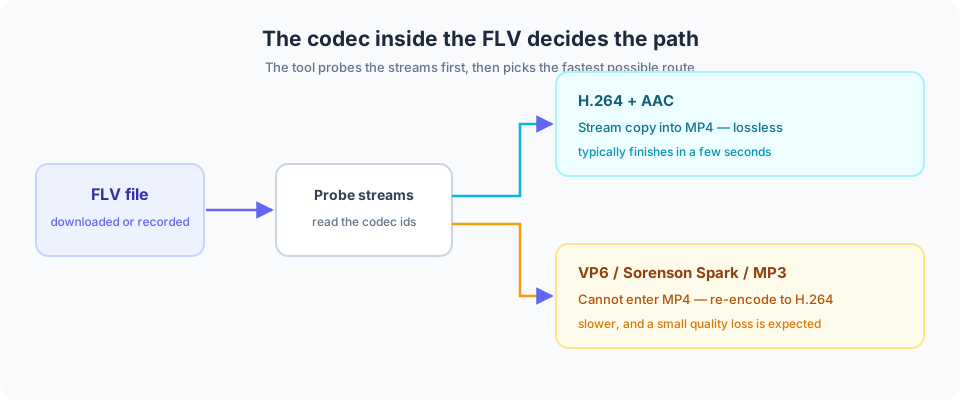
Figure 1: the tool probes the FLV streams first, then chooses between a lossless copy and a re-encode.
-c copy. It finishes in seconds and the output matches the source exactly.There is no need to identify the codec yourself — keep the default Fast mode and the tool will pick the viable path.
.flv file in.Conversion uses a WebAssembly build of FFmpeg inside your browser, so files are never uploaded and are cleared when the page closes. Keep files under roughly 500MB on desktop and 100MB on mobile for a smooth run.
These are the FLV layouts you will meet in practice, and the route each one takes to MP4. Use the Video Info Inspector first if you want to confirm your own file.
| Codecs inside the FLV | Where it comes from | Route to MP4 | Quality impact |
|---|---|---|---|
| H.264 + AAC | Web video and live captures from the last decade | Stream copy, a few seconds | None |
| H.264 + MP3 | Slightly older FLV files | Stream copy (MP3 is valid inside MP4) | None |
| VP6 + MP3 | Mid-era Flash video | Must be re-encoded to H.264 | Small loss |
| Sorenson Spark + MP3 | Very old FLV files | Must be re-encoded to H.264 | Small loss |
You do not have to identify the codec yourself: the tool probes the file and only falls back to re-encoding when a stream copy is impossible.
Content maintenance: this page is maintained and reviewed by the EZ Online Tools team; technical statements are checked against the specifications listed above. Last updated: 2026-10-16
Yes, completely free. No registration or sign-in required.
No. Everything runs locally in your browser; files never leave your device.
It depends on your device memory. Staying under 500MB per file is recommended.
Yes, on modern browsers such as Chrome and Safari. Smaller files are recommended.